

THE APPLICATION
See what you can do in Kvantia.
The everyday workspace, from a conversation to the controls behind it. Explore the screens below to see where each feature lives.
Actual application screens with fictional sample data. The application is shown in English.
01 / 10
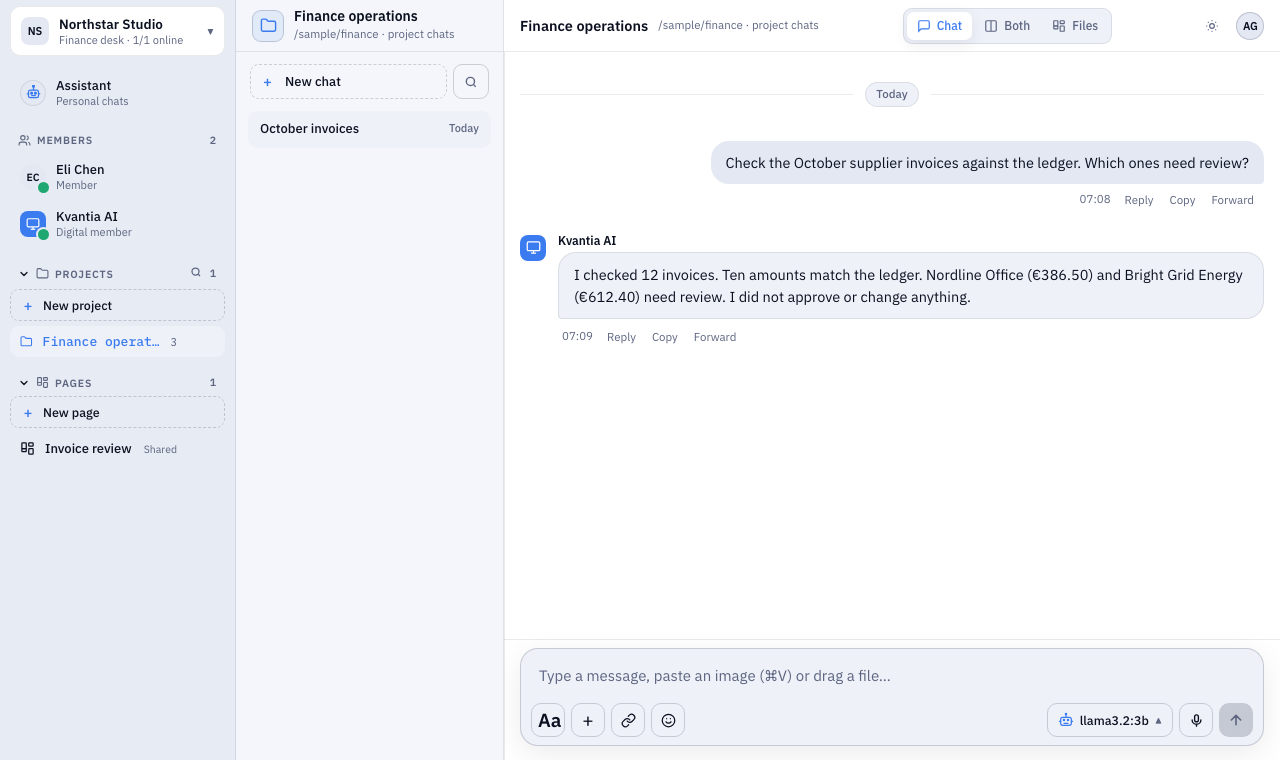
Chat with a digital member
Keep the work and its conversation together in a project.
- Ask a question in the project chat and see the answer in the same thread.
- Reply, copy or forward a message; attach a file from the composer.
- Switch between Chat, Both and Files without leaving the project.
02 / 10
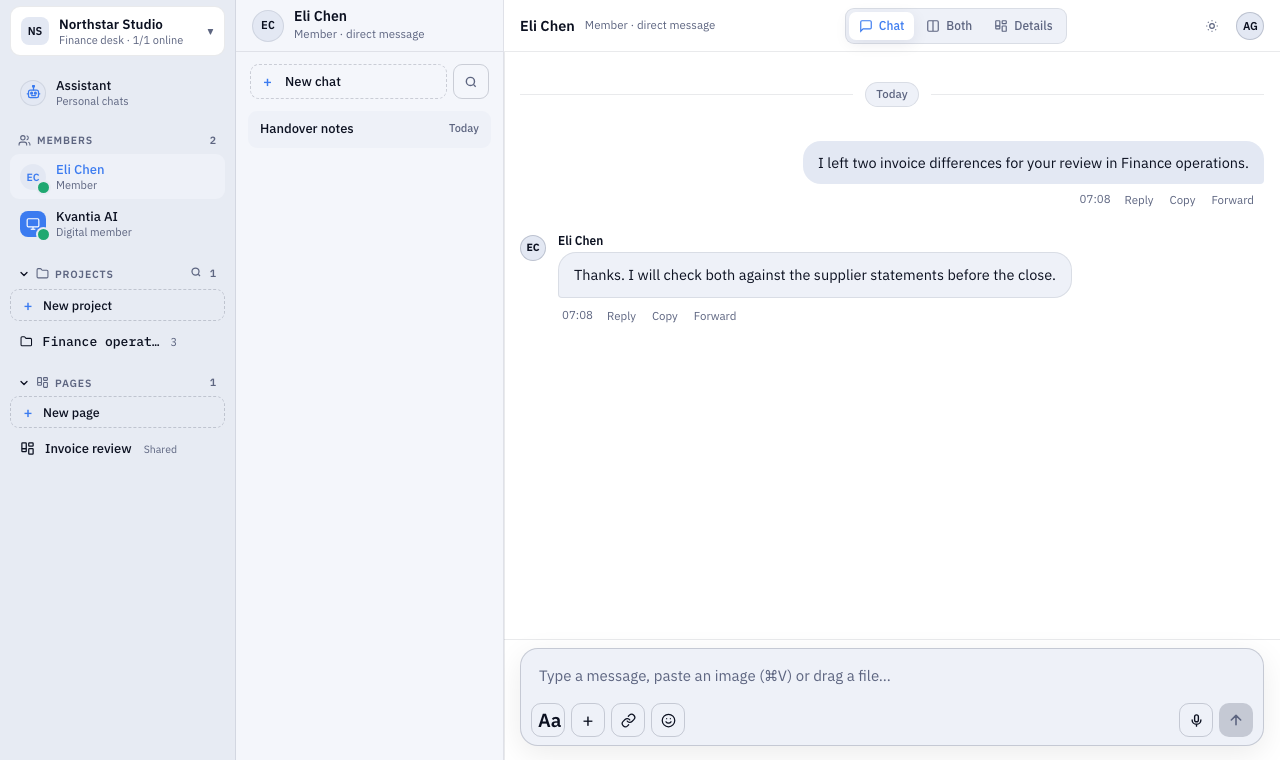
Talk with your team
Direct conversations live beside the project work.
- Open a teammate from the Members list.
- Keep a handover conversation in its own thread.
03 / 10
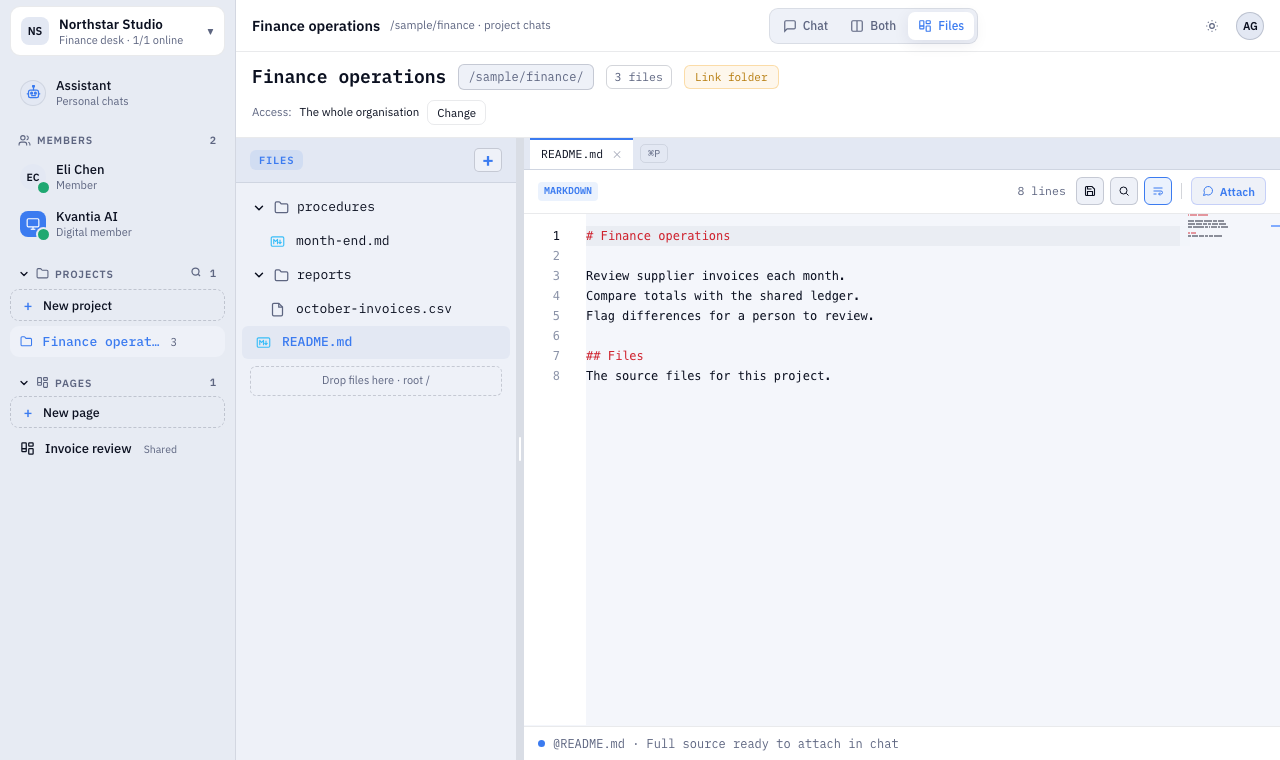
Work with project files
Browse the files behind a project and open them in the built-in editor.
- Navigate folders and files in the project tree.
- Read or edit a file, then return to the project chat.
04 / 10
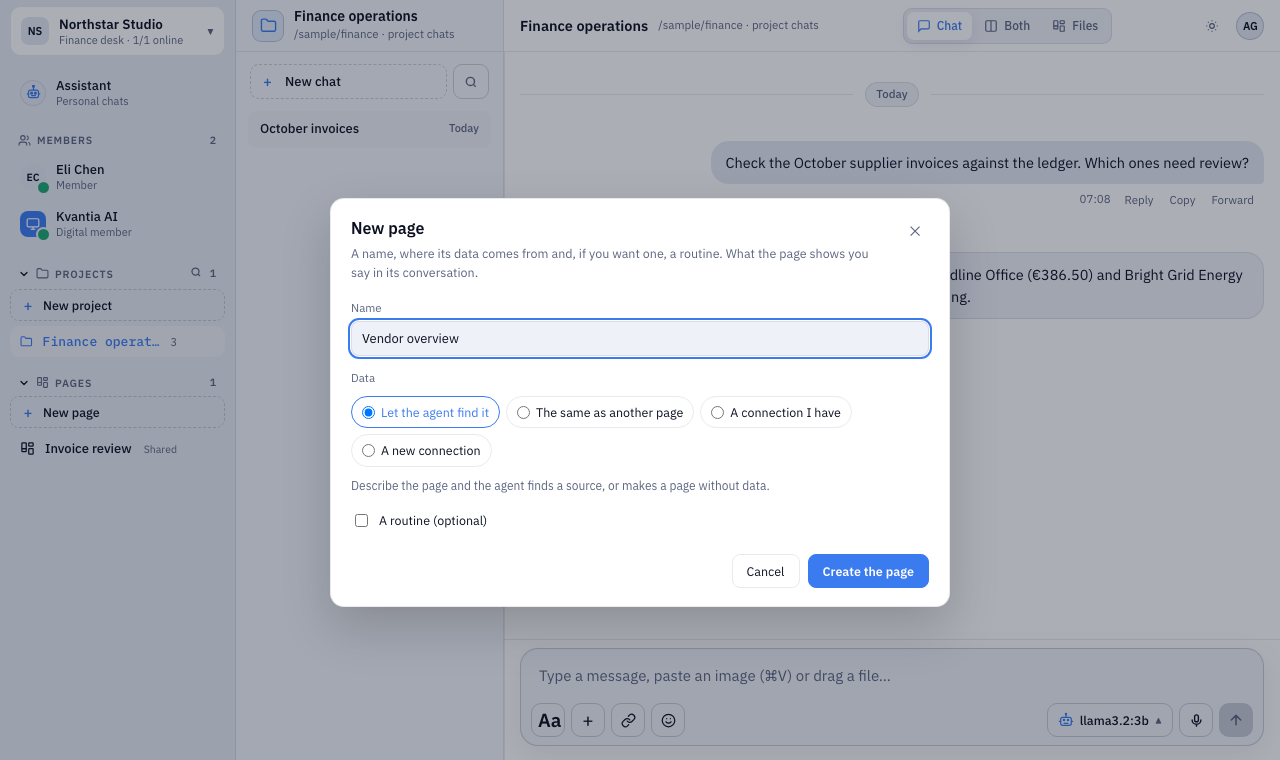
Create pages from data
Start a page by naming it and choosing where its data comes from.
- Let the agent find a source, reuse another page, or choose a connection.
- Add an optional routine during setup.
05 / 10
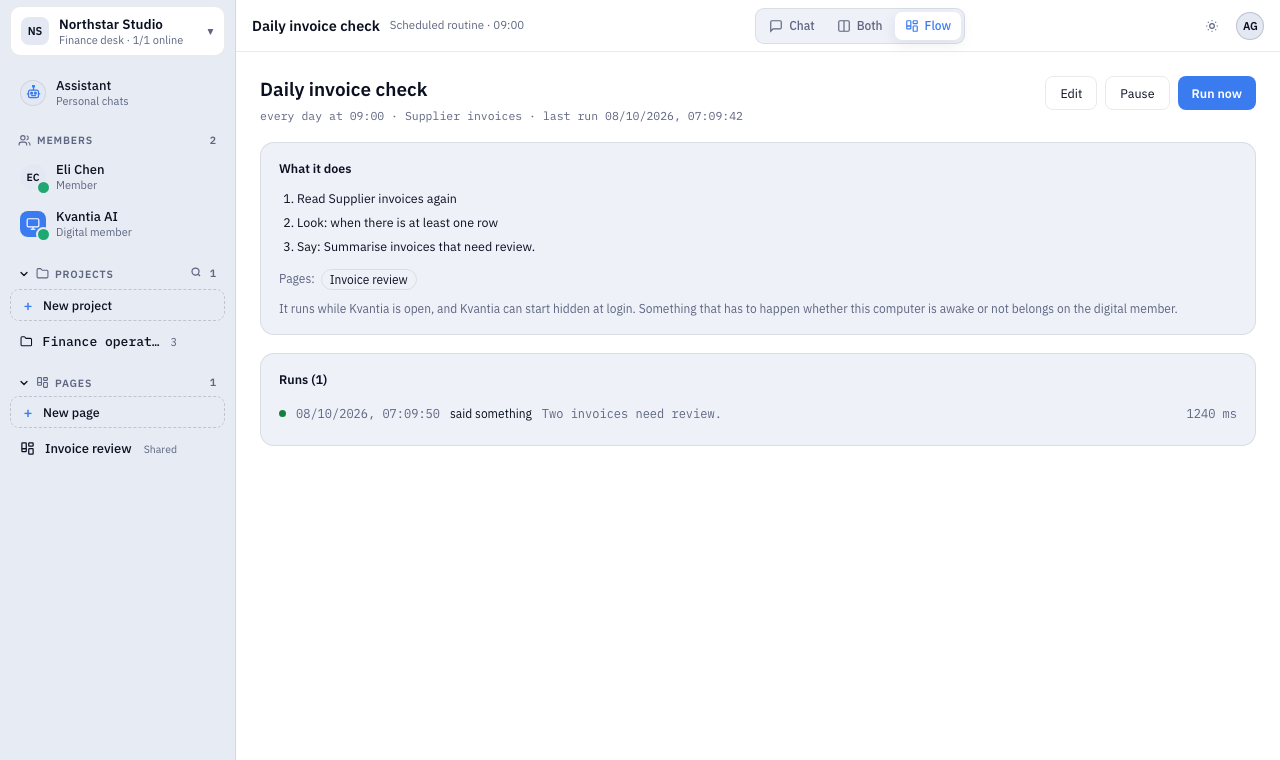
Schedule a routine
Give repeated checks a schedule and a place to review their runs.
- See what the routine reads and when it runs.
- Edit, pause or run it now; inspect recorded runs below.
06 / 10
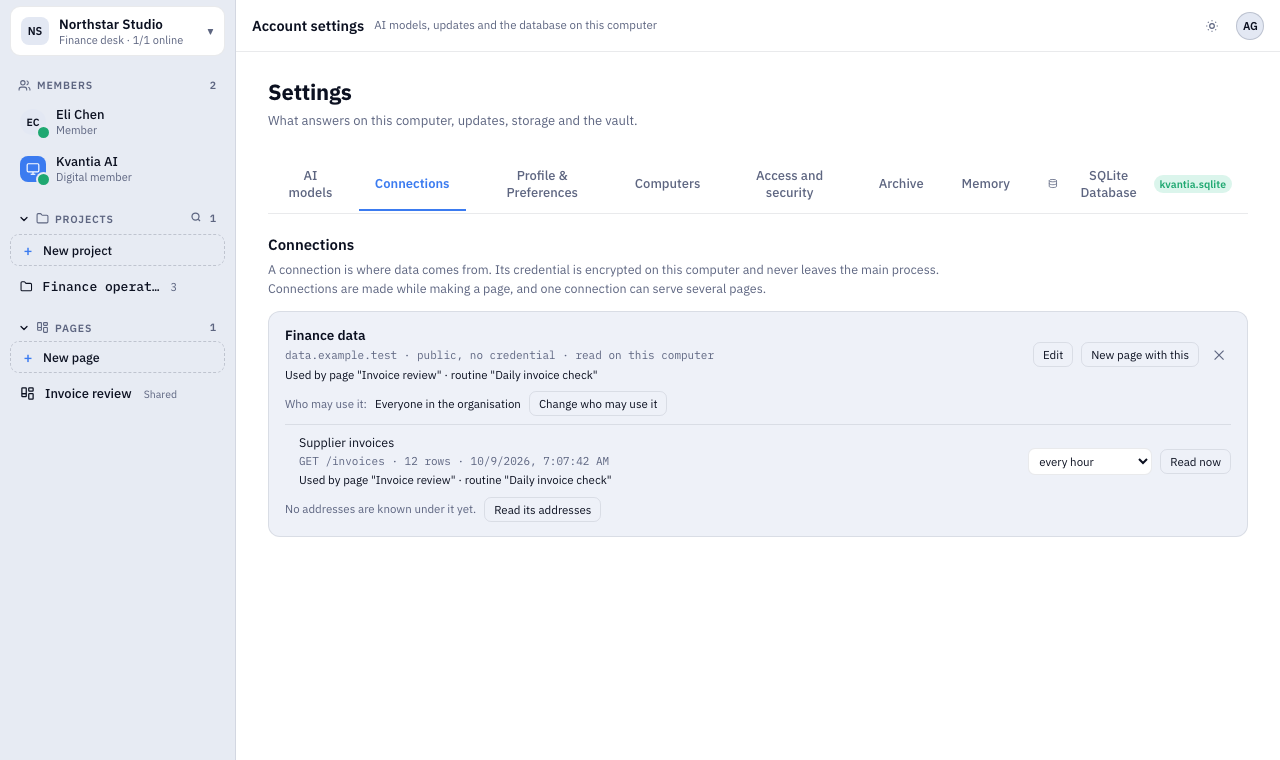
Manage data connections
See the source a page or routine uses and who may use it.
- Review connected queries and their refresh interval.
- Open access controls from the connection card.
07 / 10
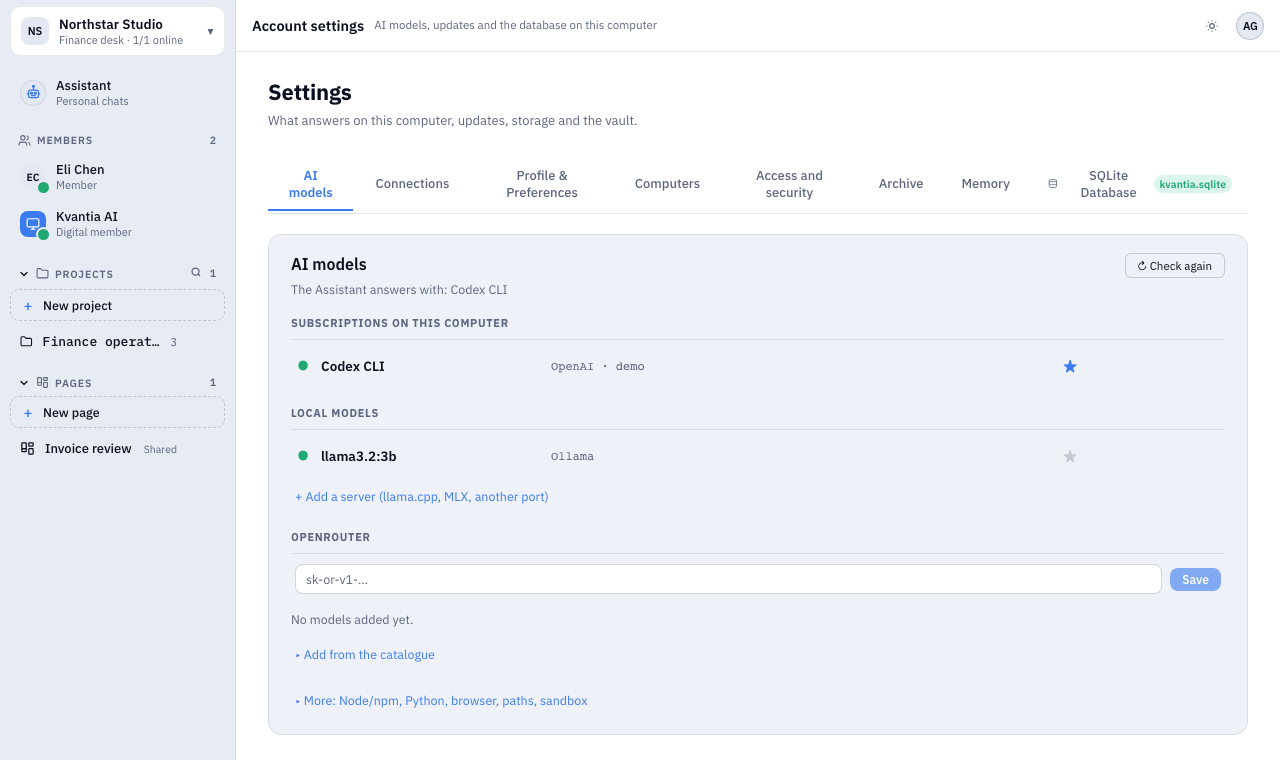
Choose AI models
Model settings show the available ways to answer on this computer.
- See local models and add a model server.
- Configure subscriptions or OpenRouter models in the same settings view.
08 / 10
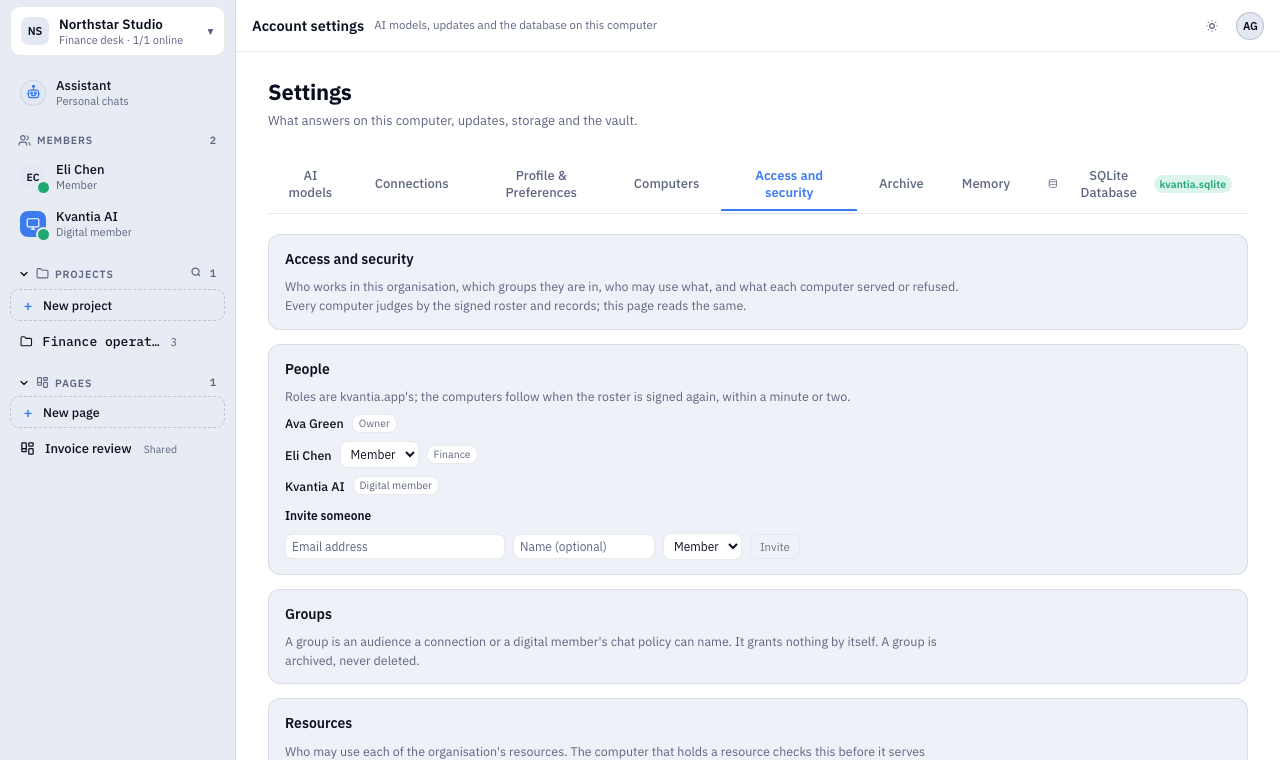
Control access
See the people, groups and resource permissions for an organisation.
- Review each member’s role and group.
- Open controls for connections, projects and digital members.
09 / 10
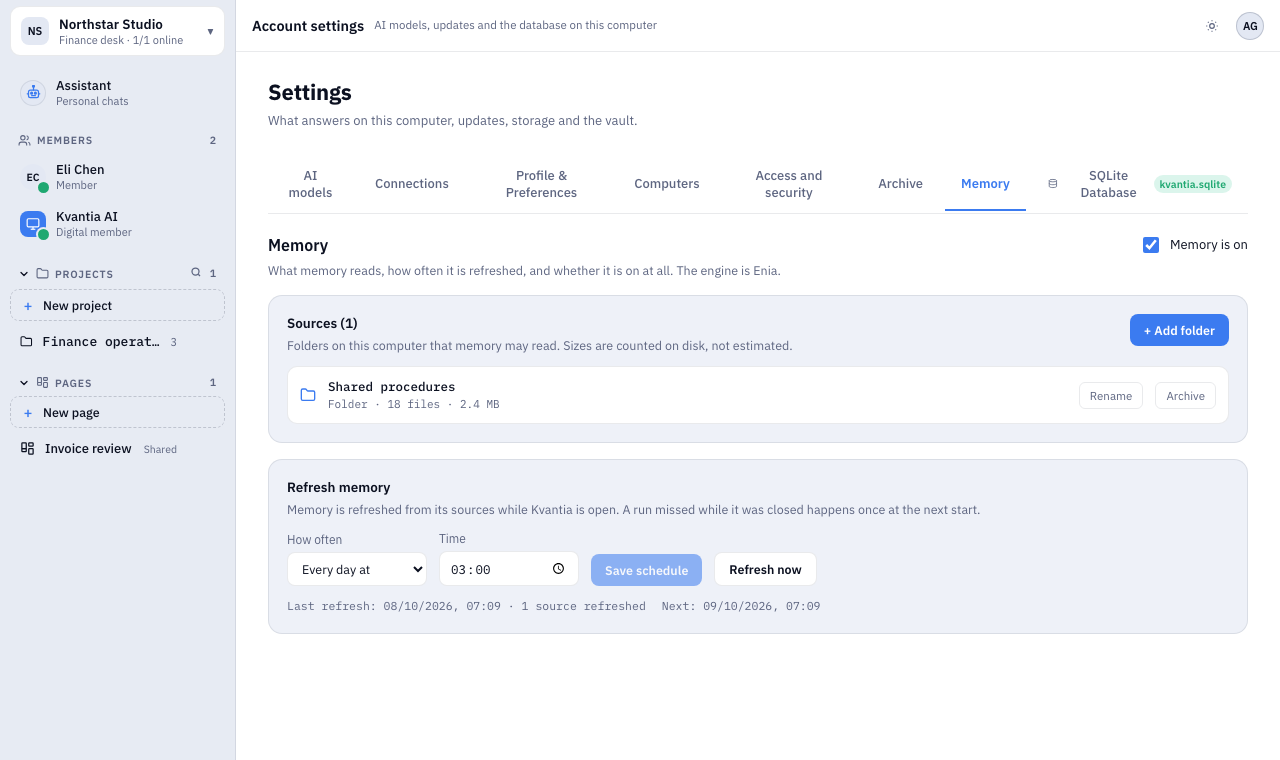
Set memory sources
Choose which folders memory may read and when it refreshes.
- Manage source folders from the Memory tab.
- Set the refresh schedule and see its status.
10 / 10
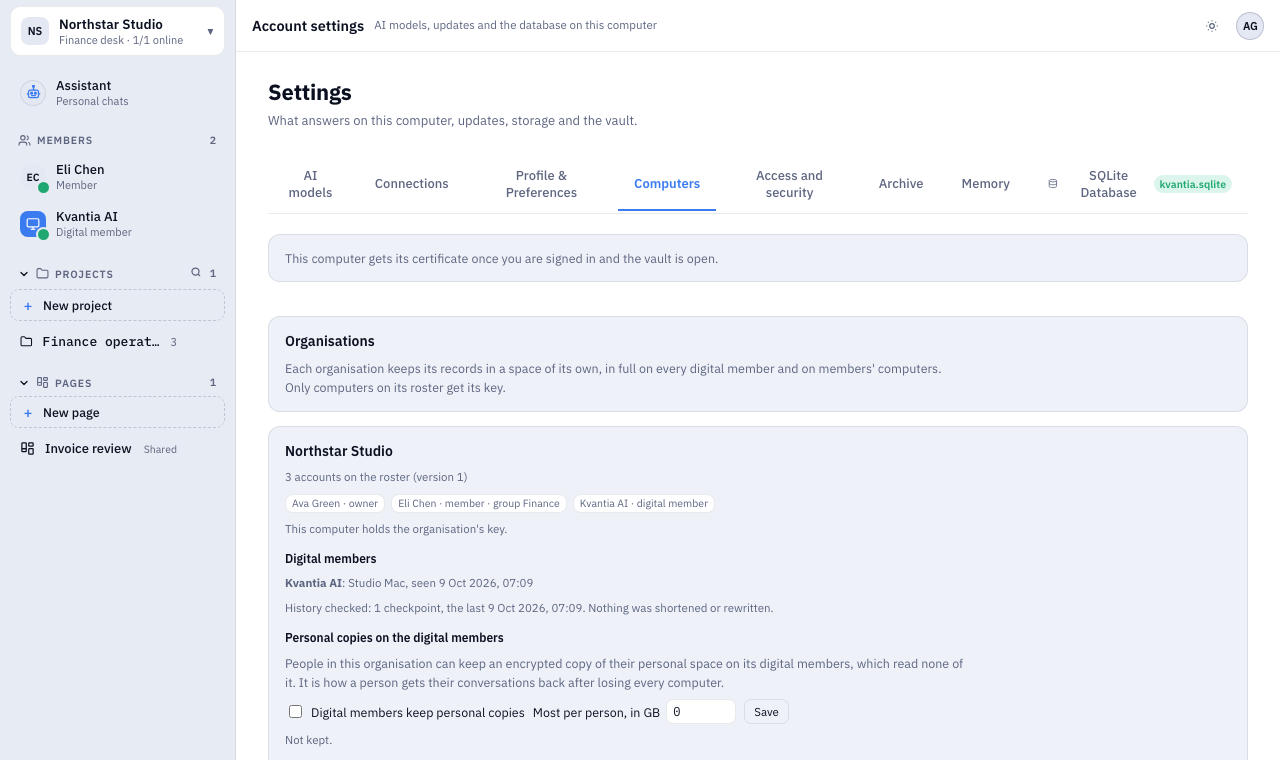
See your computers
The Computers tab shows the organisation roster and its digital members’ devices.
- See which accounts are on the roster.
- Check a digital member’s computer and its last seen time.
Ready to open your own workspace?
Download the application or compare Solo and Office before you start.